Article Detail
On-Demand Pivoting
What do you do when you need both a wide and a tall dataset to build your reports in PowerBI or similar tools?

The Challenge
How to get the best of both tall and wide tables in Power BI (without timeouts or circular models)
Most data engineers eventually stumble into the tall vs. wide table dilemma.
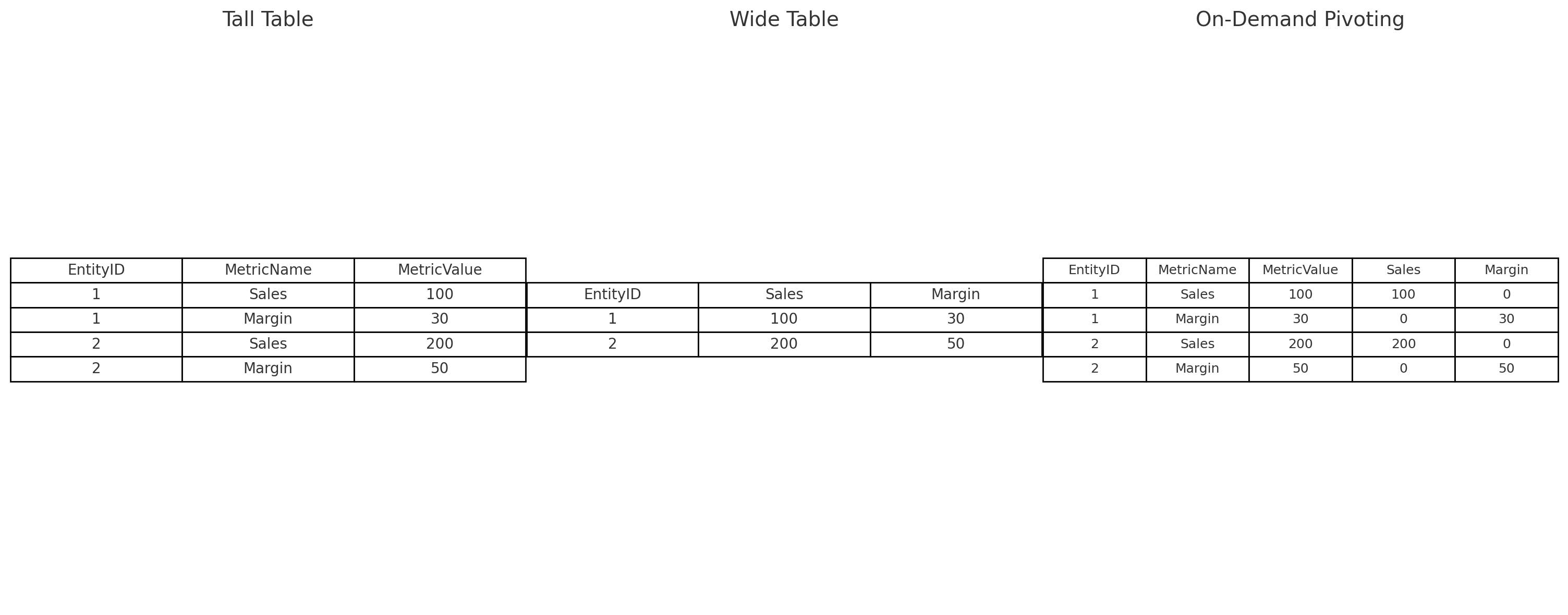
- A wide table is easy for reporting: one row per entity, many columns, each column representing a different metric.
- A tall table is efficient for storage and processing: one row per entity per metric, essentially a key-value pair.
Both have their place. Wide tables make Power BI visuals simple, while tall tables scale better for fact data. The problem? Maintaining both often leads to bloated models, long refreshes, or even dreaded circular relationships.
So what if you could have the simplicity of wide without duplicating the data?
That’s where On-Demand Pivoting comes in.
---
The Trick: Pivot Without Pivoting
Instead of materializing a wide table, you can create calculated columns that mimic the wide layout on top of your tall fact table.
Think of it as shining a spotlight on just the rows you want—without rearranging the furniture.
In Power BI (DAX), it looks like this:
SalesAmount = IF ( [MetricName] = "Sales", [MetricValue], 0 )
Margin      = IF ( [MetricName] = "Margin", [MetricValue], 0 )
Each column only lights up when the tall row matches the metric. Everywhere else, it’s a zero. When you aggregate, the numbers line up as if you had a wide table.
What About Counts?
Good catch. Counts won’t work by themselves, since blanks ≠ zeros. The workaround is to create a binary flag:
SalesCount = IF ( [MetricName] = "Sales", 1, 0 )Now you can sum this flag to get the equivalent of a “count” column from a wide table.
---
Doing It in SQL
If you prefer to keep your model leaner and push logic down to the warehouse, you can use SQL to create a wide view on top of your tall table:
SELECT    EntityID,
    CASE WHEN MetricName = 'Sales'  THEN MetricValue ELSE 0 END AS Sales,
    CASE WHEN MetricName = 'Margin' THEN MetricValue ELSE 0 END AS Margin
FROM TallFactTable;
Same principle—no duplicate storage, just on-demand pivoting at query time.
---
Why It Matters in Power BI
- No circular references. Tall tables play nicely in Power BI models, while wide fact tables can tangle relationships.
- Less storage, faster refresh. You only keep one fact table.
- Flexibility. Adding a new metric doesn’t require a schema overhaul—just a new calculated column or CASE expression.
When your data starts pushing Power BI toward timeouts, tricks like this are the difference between “working” and “practical.”
---
Closing Thought
On-demand pivoting won’t replace true pivoting in every case, but it gives you a practical middle ground: you keep the tall table’s efficiency while projecting the wide view your reports need.
It’s a simple pattern—but it can make your models cleaner, faster, and far less frustrating.