Article Detail
Matching Company Names in Excel
Regular Expressions debut in Excel (though you might have to wait your turn for your upgrade).
The Spark: A 40-Year Headache
Across my 40-year career, I’ve been asked to match one list of company names to another hundreds of times. Every analyst, data engineer, and intern has faced it:
- One system lists “Acme Co., Inc.”
- Another shows “ACME and Sons (Chicago)”
Everyone insists, “That’s the same company, right?” — and the matching begins.
Matching lists is both a rite of passage and a recurring headache. Sometimes we succeed, sometimes we fail, but it always takes more effort than anyone expects.
Why? Company names drift over time.
- Rebrands: Apple Computer → Apple, Andersen Consulting → Accenture
- Typos: “Hooli LLC” vs. “Hoolli, Inc.”
- Formatting: “Acme & Sons” vs. “Acme and Sons”
- Legacy silos: every department and system stores names differently.
Enterprises aren’t one big onion of data—they’re fields of onions, each wrapped in its own layers.
---
Why Matching Matters
In 2025, data silos are finally learning to cooperate. APIs, data warehouses, and AI systems all rely on consistent naming. But no matter how modern your tools are, if company names don’t align, you can’t integrate, reconcile, or analyze data accurately.
That’s why this problem keeps resurfacing year after year.
---
The Overlords Have Spoken: Excel Finally Gets REGEX
In 2025, the same overlords who brought us =SUM() and =VLOOKUP() finally gave Excel users a tool developers have relied on since the 1970s: Regular Expressions, or REGEX.
Excel now includes three powerful text functions — REGEXTEST, REGEXEXTRACT, and REGEXREPLACE. These let you clean and match text directly in formulas, without VBA, add-ins, or Power Query.
No macros, no scripts, no imports—just formulas.
Note: The REGEX functions are new to Excel. Depending on your version of Excel and how your organization manages updates, you might not have access to them yet. These functions are rolling out gradually to Microsoft 365 users on the Current Channel (Preview) and later to all 365 builds. If your Excel doesn’t recognize REGEXREPLACE or REGEXEXTRACT, check for updates or switch to the Insider/Beta channel.
---
What is REGEX (Briefly)
Regular expressions are advanced search patterns that describe how text looks rather than what it says.
A few examples:
\s+→ any number of spaces
[^A-Za-z0-9]→ anything that isn’t a letter or number
\bInc\.\?\b→ “Inc” or “Inc.” as a whole word
Even simple patterns can perform powerful cleanup.
(For deeper learning, see the REGEX resources at the end.)
---
LET(): Excel’s Hidden Superpower
Introduced quietly in 2019, LET() lets you create variables inside a formula. Instead of repeating long expressions, you can name each step and reuse it.
=LET(
   Step1, <first_transform>,
   Step2, <transform_2_using_Step1>,
   Step3, <transform_3_using_Step2>,
   <final_expression_using_last_step>
)
It’s like writing a small program in a single cell. Intermediate results are reusable, making formulas shorter, faster, and easier to debug.
Important: Excel does not allow reusing variable names insideLET(). Each must be unique. The simplest pattern—Step1,Step2,Step3, etc.—is often the clearest.
Example:
=LET(
   Step1, REGEXREPLACE([@[SystemB_Name]], RE_TRAILING_PAREN, REPL_EMPTY),
   Step2, REGEXREPLACE(Step1, RE_AMPERSAND, REPL_AND),
   Step3, REGEXREPLACE(Step2, RE_SUFFIXES, REPL_EMPTY),
   Step4, TRIM(REGEXREPLACE(Step3, RE_SPACES, REPL_SPACE)),
   UPPER(REGEXREPLACE(Step4, RE_NONALNUM, REPL_EMPTY))
)
Readable. Sequential. Maintainable.
---
The Formula Deep Dive
Our workbook includes two core formulas:
Compact Key
Removes punctuation and spaces, converting everything to uppercase for consistent, case-insensitive comparison:
=UPPER(REGEXREPLACE([@[SystemA_Name]], RE_NONALNUM, REPL_EMPTY))Robust Key
Handles parentheticals, ampersands, suffixes like “Inc.”, and spacing:
=LET(
   Step1, REGEXREPLACE([@[SystemA_Name]], RE_TRAILING_PAREN, REPL_EMPTY),
   Step2, REGEXREPLACE(Step1, RE_AMPERSAND, REPL_AND),
   Step3, REGEXREPLACE(Step2, RE_SUFFIXES, REPL_EMPTY),
   Step4, TRIM(REGEXREPLACE(Step3, RE_SPACES, REPL_SPACE)),
   UPPER(REGEXREPLACE(Step4, RE_NONALNUM, REPL_EMPTY))
)
Result:
"Acme Co., Inc. (Chicago)"→ACMECO"ACME & Sons LLC"→ACMEANDSONS
Once both lists are normalized, you can match on the resulting key columns — Excel handles the comparison reliably.
---
7. The Pattern Page
To make this approach reusable (and editable for newbies and old-timers alike), we store all regex patterns and replacements in a Patterns sheet. Each has a friendly name:
| Name | Pattern | Description |
|---|---|---|
| RE_TRAILING_PAREN | \s*\([^)]*\)\s*$ | Removes (Something) at the end |
| RE_SUFFIXES | `(?i)\b(inc(orporated)? | llc |
| RE_NONALNUM | [^A-Za-z0-9] | Removes punctuation |
Formulas reference these by name. If someone wants to expand suffixes (e.g., add “S.p.A.” or “Oy”), they only need to update one cell—no rewriting formulas.
---
Our Example
Our example uses Excel Table syntax for readability (e.g., [@[SystemA_Name]]), but these same formulas work perfectly with standard cell references such as B2 or C2.
We’ll walk through matching two messy lists of fictional company names derived from “Dow 100–style” data. Each system column includes typos, abbreviations, or suffixes. After normalization, we compare the keys and flag matches with TRUE/FALSE.
The Patterns Sheet
The patterns sheet provides a place for our REGEX patterns and replacements.
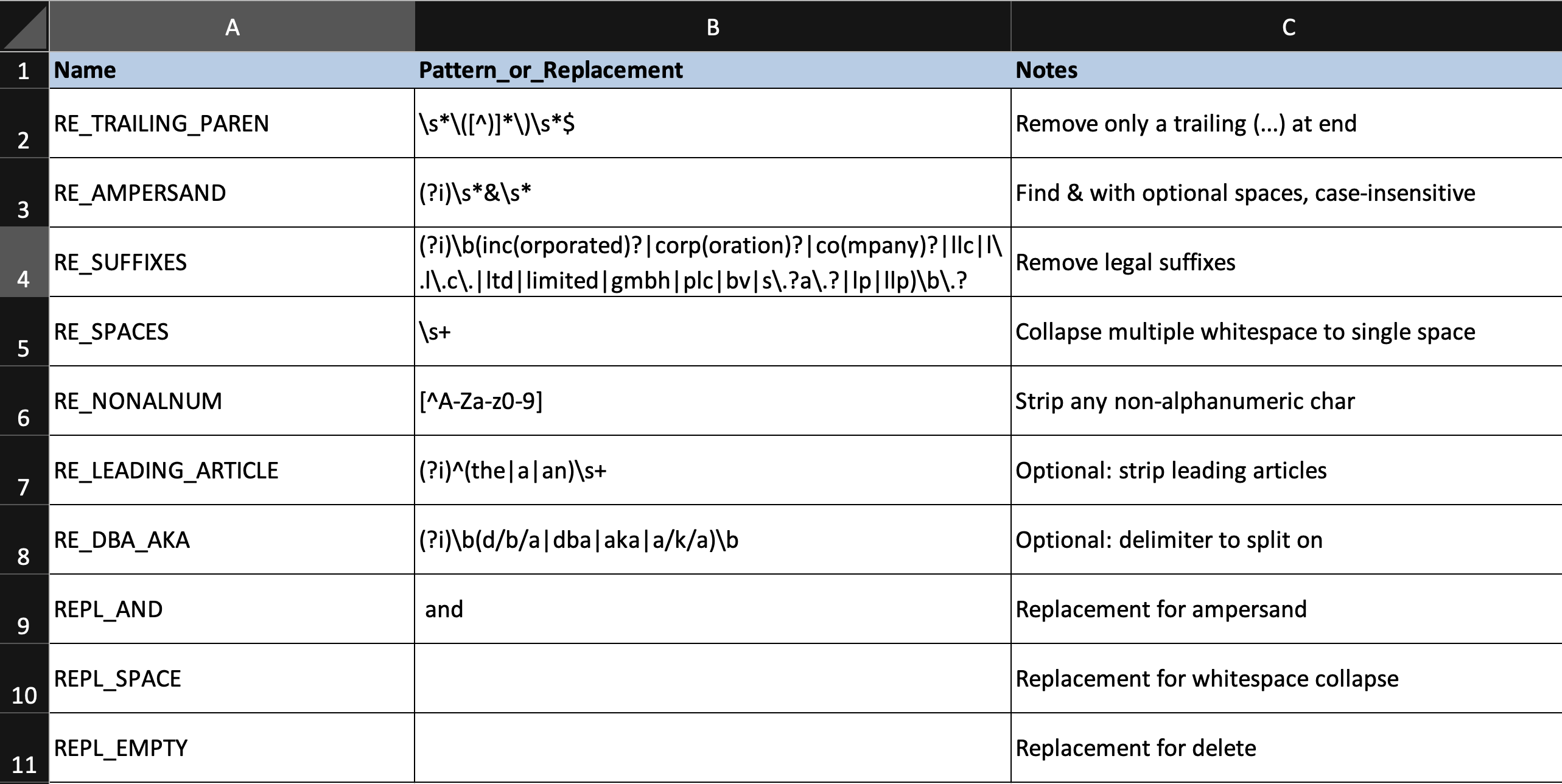
While we could include the strings in column B in each of our formulas, when we are doing heavy data cleansing and matching, being able to refer to:
(?i)\b(inc(orporated)?|corp(oration)?|co(mpany)?|llc|l\.l\.c\.|ltd|limited|gmbh|plc|bv|s\.?a\.?|lp|llp)\b\.?
with
RE_SUFFIXES
reduces our cognitive load while providing a single place to add or remove a suffix.
Matching Company Names

---
Since a screenshot does not help much here, let’s transpose and look at some examples and the formulas. Note, the transposition is “values-only”.
| Column | Formula / Note | Example 1 | Example 2 |
|---|---|---|---|
| Canonical_Name | Name from DOW 100 | Helios Resources & Partners, L.L.C. | Virtucon Pharmaceuticals, Ltd. |
| SystemA_Name | Name from one system | Helios Resources and Partners, L.L.C. | Virtucon Pharmaceuticals Ltd.. (R&D) |
| SystemB_Name | Name from another system | Helios Resources & Partners L.L.C. | Virtucon Pharmaceuticals Ltd.. |
| A_NoTrailingParen | `=REGEXREPLACE([@[SystemA_Name]], | ||
| RE_TRAILING_PAREN, REPL_EMPTY)` | Helios Resources and Partners, L.L.C. | Virtucon Pharmaceuticals Ltd.. | |
| B_NoTrailingParen | `=REGEXREPLACE([@[SystemB_Name]], | ||
| RE_TRAILING_PAREN, REPL_EMPTY)` | Helios Resources & Partners L.L.C. | Virtucon Pharmaceuticals Ltd.. | |
| A_Key_Compact | `=UPPER(REGEXREPLACE([@[A_NoTrailingParen]], | ||
| RE_NONALNUM, REPL_EMPTY))` | HELIOSRESOURCESANDPARTNERSLLC | VIRTUCONPHARMACEUTICALSLTD | |
| B_Key_Compact | `=UPPER(REGEXREPLACE([@[B_NoTrailingParen]], | ||
| RE_NONALNUM, REPL_EMPTY))` | HELIOSRESOURCESPARTNERSLLC | VIRTUCONPHARMACEUTICALSLTD | |
| A_Key_Robust | `=LET( |
Step1, REGEXREPLACE([@[SystemA_Name]], RE_TRAILING_PAREN, REPL_EMPTY), Step2, REGEXREPLACE(Step1, RE_AMPERSAND, REPL_AND), Step3, REGEXREPLACE(Step2, RE_SUFFIXES, REPL_EMPTY), Step4, TRIM(REGEXREPLACE(Step3, RE_SPACES, REPL_SPACE)), UPPER(REGEXREPLACE(Step4, RE_NONALNUM, REPL_EMPTY)) | HELIOSRESOURCESANDPARTNERSLLC | VIRTUCONPHARMACEUTICALS | | B_Key_Robust | =LET( Step1, REGEXREPLACE([@[SystemB_Name]], RE_TRAILING_PAREN, REPL_EMPTY), Step2, REGEXREPLACE(Step1, RE_AMPERSAND, REPL_AND), Step3, REGEXREPLACE(Step2, RE_SUFFIXES, REPL_EMPTY), Step4, TRIM(REGEXREPLACE(Step3, RE_SPACES, REPL_SPACE)), UPPER(REGEXREPLACE(Step4, RE_NONALNUM, REPL_EMPTY)) | HELIOSRESOURCESANDPARTNERSLLC | VIRTUCONPHARMACEUTICALS | | KeysMatch_Robust | =EXACT(H4, I4)` | TRUE | TRUE |
References and Further Learning
REGEX Resources
- Microsoft Community Hub: New Regular expression (Regex) functions in Excel
- Regular-Expressions.info: Beginner’s Guide
- Regex101: Interactive Tester
- Ben Forta’s Regular Expressions in a Nutshell (classic book)
Excel Feature References
- Microsoft Learn: LET function
- Microsoft Learn: Named Ranges
- Microsoft Learn: Excel Tables
- Microsoft Learn: EXACT function
- Microsoft Learn: TRIM function
---
10. Closing Thought
Excel finally has what we needed all along — the ability to clean and normalize text natively. No macros. No Python scripts. No Power Query imports. Just elegant formulas, structured logic, and a touch of REGEX magic.
It’s about time.