Article Detail
Copy, Paste… Laminate
Engaging with Viva Engage
Context
While migrating from Meta Workplace to Viva Engage, we found that pasted formatted text lands in Engage—but you can’t edit or copy it once it’s there. When Microsoft Copilot came up blank, I turned to ChatGPT (got to love the irony). Here’s what testing shows.
---
What We’re Seeing
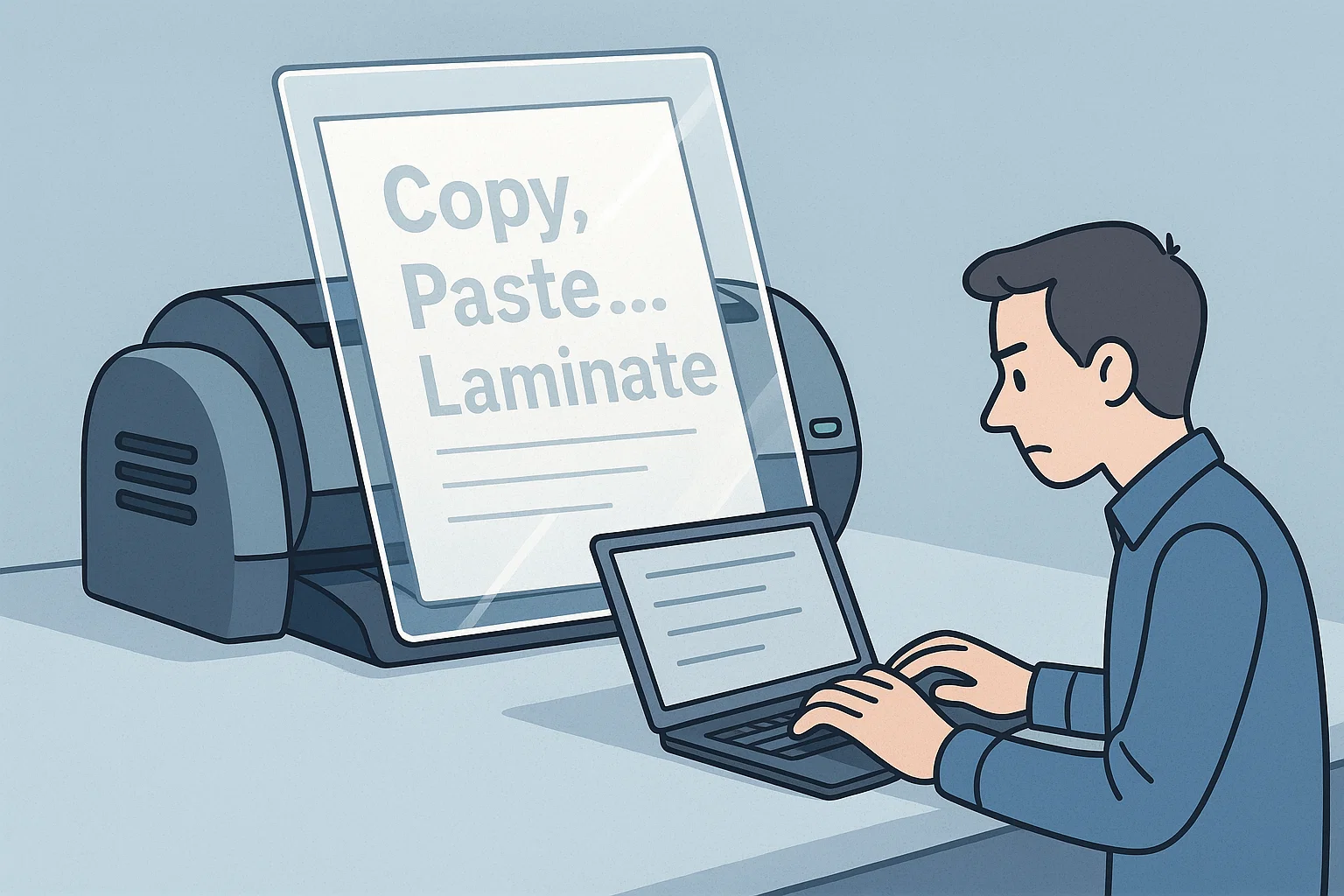
Pasting formatted content (from web pages, PDFs, etc.) into Engage often creates a frozen block. You can type before or after it, but you can’t edit or select inside. Microsoft hasn’t documented this as a feature, but the behavior is consistent.
---
Why It Might Be Happening
Engage likely follows Microsoft 365’s compliance playbook—treating pasted content as a snapshot of record to prevent accidental edits and preserve audit trails. This aligns with Microsoft’s emphasis on immutability and governance.
---
What It Means for You
| Scenario | Best Approach |
|---|---|
| Need to edit or quote | Paste as plain text (Ctrl+Shift+V) or via Notepad. You’ll lose formatting but keep flexibility. |
| Need to preserve format | Paste normally and accept it as a static snapshot. Add context or commentary around it. |
| Need to collaborate | Keep drafts in Word/OneNote/SharePoint. Paste simplified versions into Engage when sharing. |
---
Silver Lining
Snapshot mode ensures pasted references don’t drift or get mangled. Think of Engage pinning your text like a butterfly specimen—preserved, if not lively.
---
Final Tip
Treat Engage as a show-and-tell board, not a workshop. Use it to share and discuss snapshots. For living documents, work in Word, OneNote, or SharePoint, then paste clean versions into Engage.