Article Detail
SELECT * PTSD
How to Avoid the Power BI Performance & Maintenance Trap
---
In the Trenches
If you’ve been in the BI trenches long enough, you’ve probably experienced it:
- A report that was fine yesterday takes forever to refresh today.
- Visuals suddenly vanish during a big presentation.
- A random schema change in the source system quietly breaks your dataset.
Often, the culprit is a single, lazy habit:
SELECT * FROM dbo.BigTableOr, in Power BI, just clicking a table name and letting “magic” happen — which is SELECT * in disguise.
---
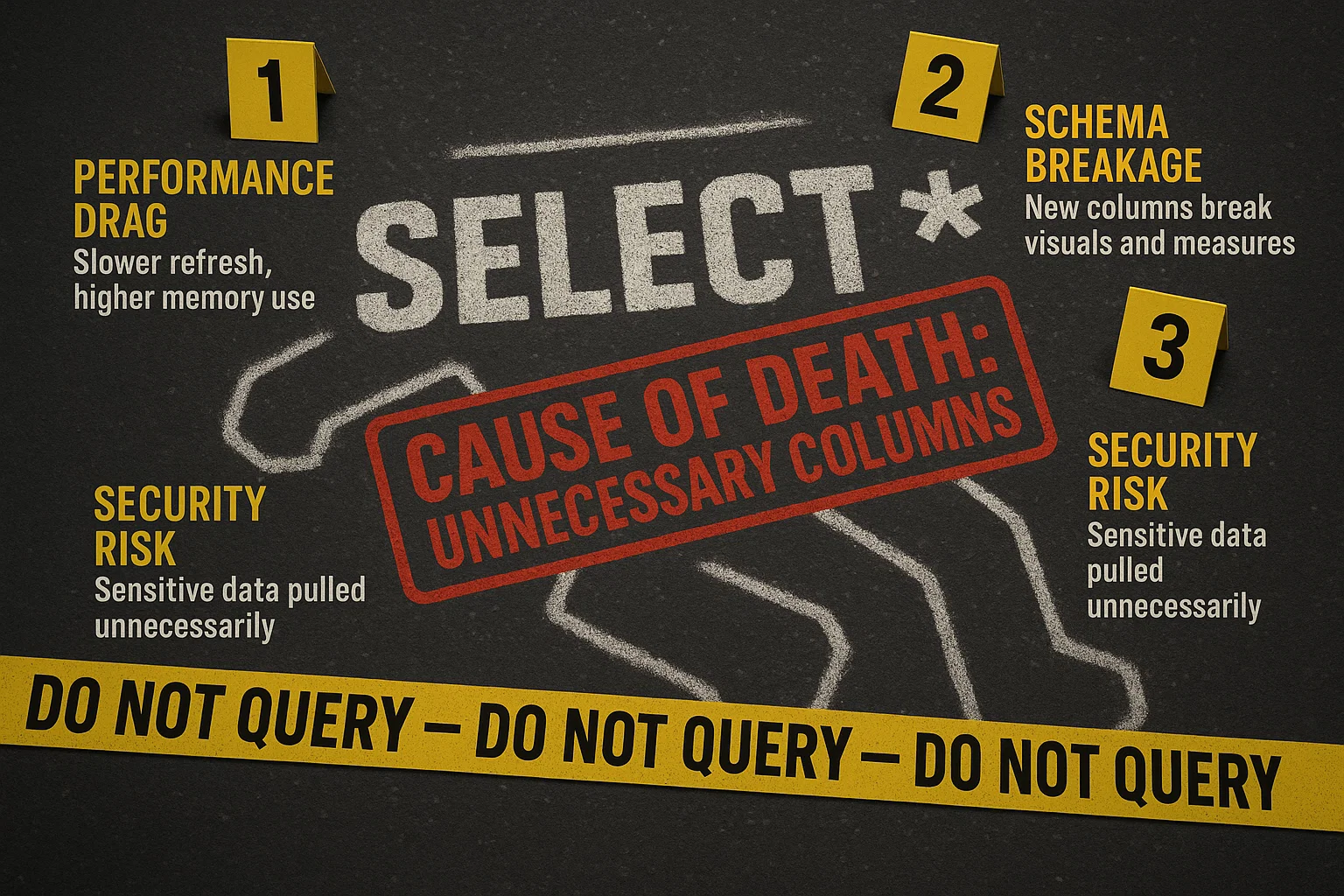
Why SELECT * Is a Problem in Power BI
1. Performance Drag
Pulls every column from the table, whether you use it or not. That means:
- More network traffic
- More memory consumed in the dataset
- Longer refresh times
2. Hidden Breakage from Schema Changes
When someone adds, renames, or removes a column in the source:
- Measures and visuals break
- Refreshes fail without warning
- You scramble to fix it mid-demo
3. Security & Compliance Risk
Might load sensitive fields (PII, financials, audit-protected data) into Power BI even if unused. Still in the dataset, still a liability.
---
The “Magic” Table Selection Trap
When you pick a table in Power BI:
- Power BI reads metadata to list columns.
- When you load, it queries every column.
- Removing columns later only helps if query folding works — otherwise you still pulled everything.
So “just picking a table” isn’t safer — it’s hiding SELECT *.
---
Mitigations That Actually Work
1. Build Model Tables With Intent
Limit columns at the source before Power BI touches them:
- SQL views with explicit columns
- Stored procedures with fixed outputs
- First-step column trimming in Power Query that still folds to SQL
2. Enforce Explicit Columns in Queries
SELECT OrderID, OrderDate, CustomerName
FROM dbo.Orders
In Power Query: remove unused columns immediately.
3. Separate Presentation from Raw Data
Use curated views containing only what reports need. Apply naming, types, and cleanup once.
4. Validate Query Folding
After trimming columns, check View Native Query to confirm folding. If it’s grayed out, folding is broken.
---
Bottom Line
SELECT * feels convenient, but it’s a time bomb for:
- Performance – every extra column slows you down
- Stability – schema changes break things without warning
- Security – risks loading sensitive data unnecessarily
Be intentional about what you load. Whether via curated views, explicit SQL, or disciplined Power Query trimming, the goal is the same — only bring in what you need. Your refresh times, data gateway, and future self will thank you.